
App guide
Your AI colleagues in your pocket.
The same workspace on your phone. Give a task on the go, follow your channels and get a notification when a colleague needs you.
- 1
Install the app
The Match-AI app is available for Android. The iPhone version is coming soon. You get the download link from your go-to contact at Match-AI.
- Install the app on your phone and open it.
- You can choose Link with QR code (“Koppelen met QR-code”, recommended) or Log in (“Inloggen”) with your email address, password and authenticator code.
Using a phone without the app? Open app.match-ai.nl in your browser. The workspace adapts to your screen.
- 2
Link your phone with a QR code
Linking is the fastest and safest option: you don't type your password on your phone.
- 1Open the workspace on your computer and go to Settings → Mobile app (“Instellingen → Mobiele app”).
- 2Click Link a phone (“Koppel een telefoon”). A QR code appears.
- 3In the app, tap Link with QR code (“Koppelen met QR-code”) and point your camera at the code.
- 4Confirm on your phone that you want to log in with your account. That's it.
Secure: the code is valid for two minutes and works once. If it has expired, click Link a phone (“Koppel een telefoon”) again.
Settings · Mobile app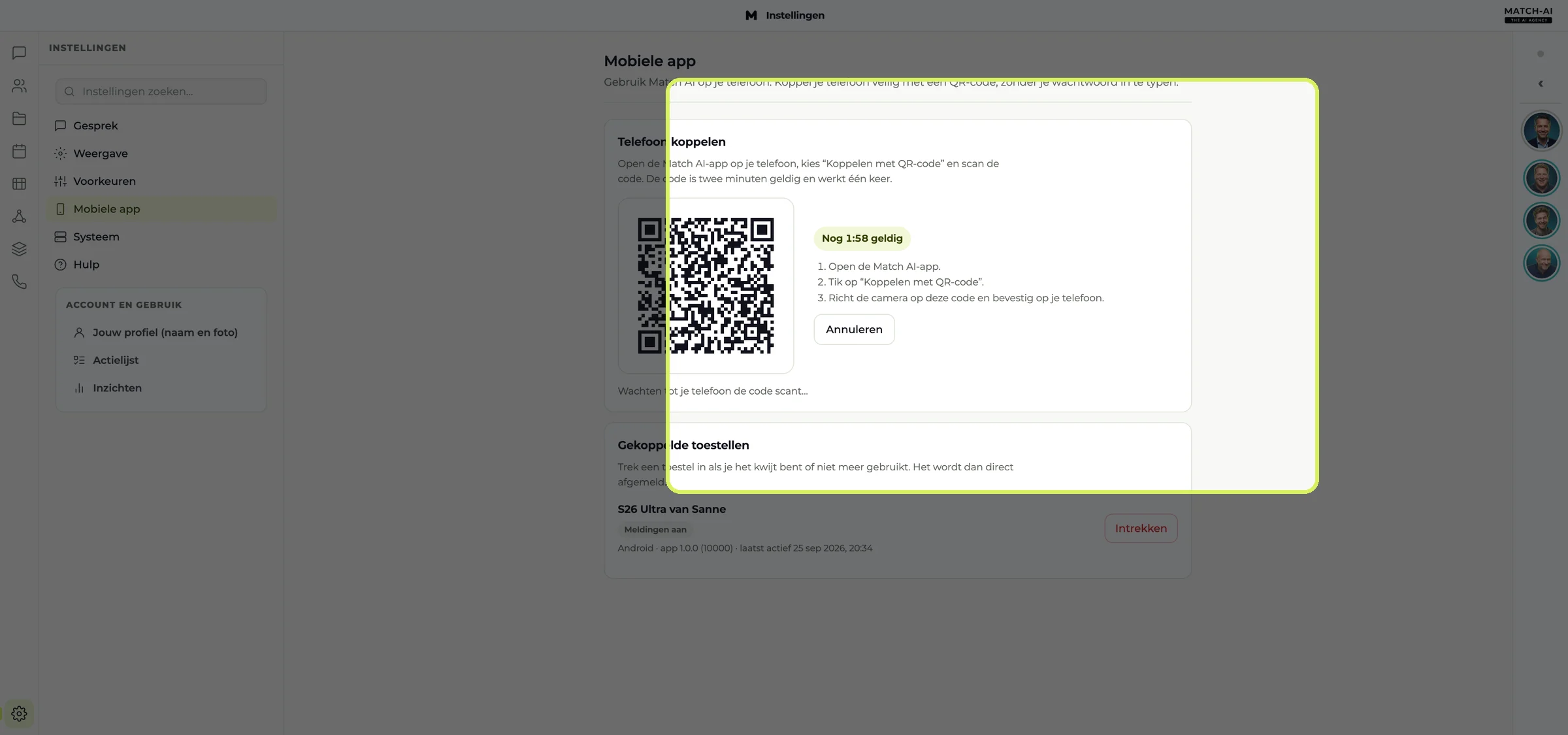
Example: the real code appears in your own workspace. - 3
Working in the app
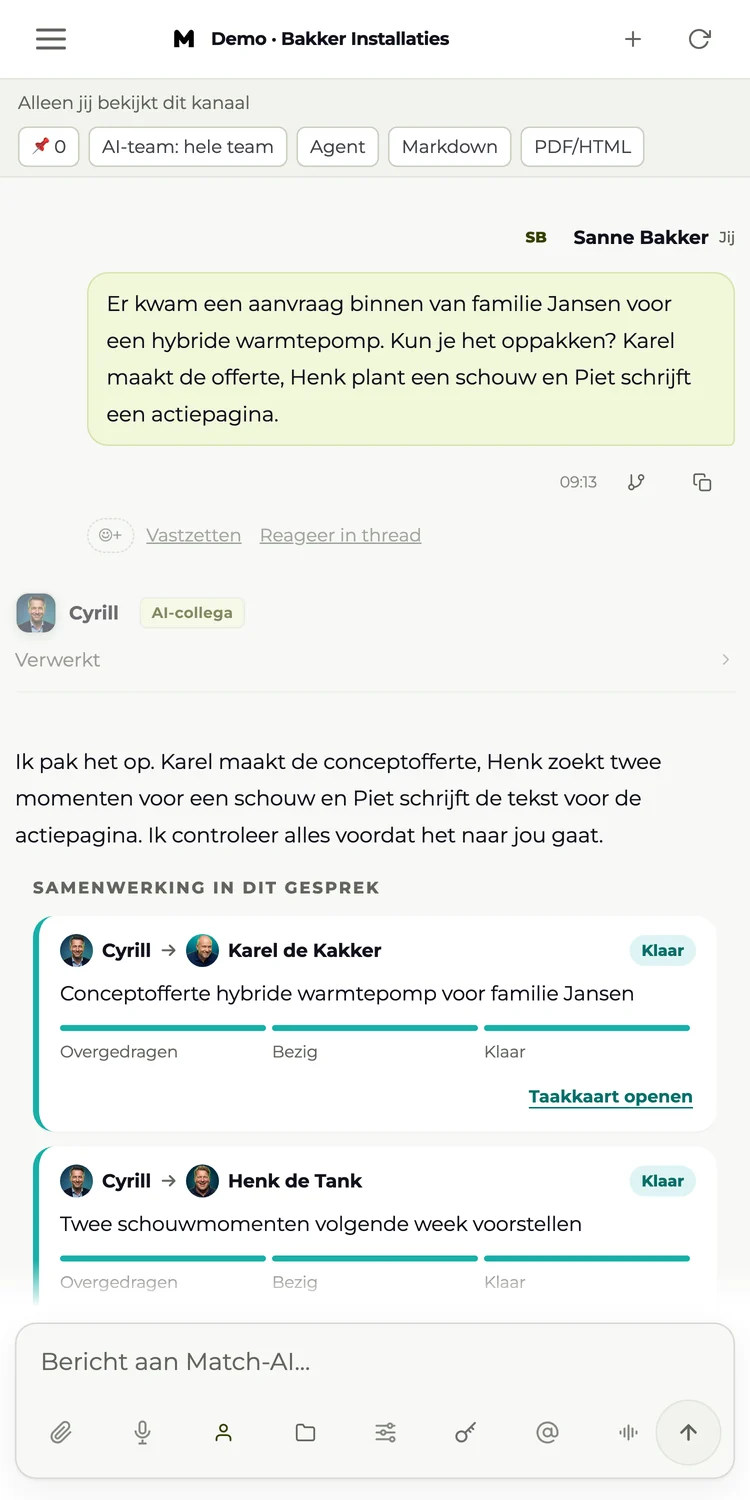
The app is the same workspace as on your computer. Whatever you do in one place, you immediately see in the other.
- Menu (☰ top left): your channels, chats and the other sections.
- Give a task: type at the bottom or tap the microphone to dictate.
- Mention someone: tap @ and choose an AI colleague or colleague.
- Progress: the task cards show per colleague whether the work is done.
- Photos: add a photo with the paperclip, for example of a situation on site.
Handy on the go: take a photo of a fuse box or work order and ask “@Henk, add this to the Jansen work order”.
- 4
Notifications
You get a notification when a colleague posts a message in a channel you're in.
- The notification says who wrote something and in which channel. For privacy reasons, the content of the message isn't included.
- Tap the notification to open the channel straight away.
- You turn notifications on or off in your phone’s settings. In the workspace you can see for each device whether notifications are on.
Replies from AI colleagues don't trigger a push notification yet. You'll see them when you open the channel.
- 5
Manage devices
Under Settings → Mobile app (“Instellingen → Mobiele app”) you see all linked devices, with the type, whether notifications are on and when the device was last active.
Lost or replaced your phone? Click Revoke (“Intrekken”) next to that device. The device is signed out immediately.
A linked device stays signed in for 30 days. After that, you link it again.
app.match-ai.nl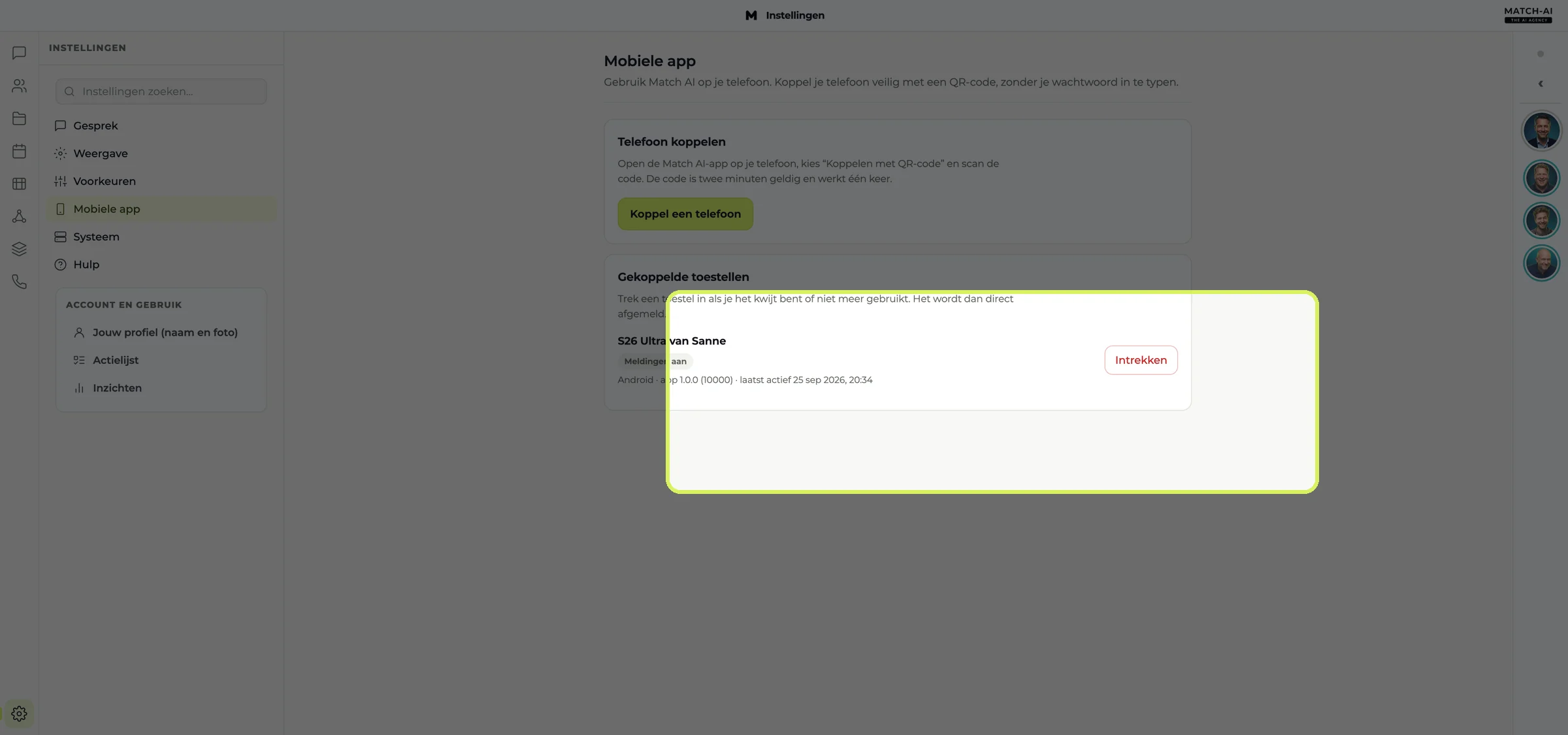
Troubleshooting
The QR code doesn't work+
The code is valid for two minutes and only works once. Click Link a phone (“Koppel een telefoon”) again and scan the new code. Make sure your phone is connected to the internet.
I'm not getting notifications+
Check that notifications for the Match-AI app are turned on in your phone’s settings. In the workspace, check under Settings → Mobile app (“Instellingen → Mobiele app”) that your device shows Notifications on (“Meldingen aan”). Notifications are only sent for messages from colleagues in channels.
I've been signed out of the app+
After 30 days, or once the device has been revoked, link it again with a QR code or log in with your password and authenticator code.
Dictation is slow+
In the app, your recording is first converted to text. That can take a few seconds. Speak calmly and hold the button until you're done.
Need help linking?
Your go-to contact at Match-AI is happy to help, including installing the app for your whole team.





The data shown is sample data (Bakker Installaties). The screenshots show the Dutch interface of the app.