
Quickstart
Get started with your AI colleagues in five steps.
Your workspace is ready. In fifteen minutes you'll have activated your account, given your first task and watched your team get to work.
- 1
Activate your account
You'll receive an invitation from us or from the admin in your organisation. Use it to set up your account:
- Open the link in the invitation and choose Set up account (“Account instellen”).
- Enter your name and choose your own password.
- Scan the code with an authenticator app (for example Google Authenticator, Microsoft Authenticator or 1Password). From now on, you'll enter that six-digit code when you log in.
Then log in at app.match-ai.nl. If you work for several organisations, you choose the right workspace after logging in.
Why the extra code? Your AI colleagues work in your email, CRM and accounting. The second step makes sure only you can get into your workspace, even if someone knew your password.
app.match-ai.nl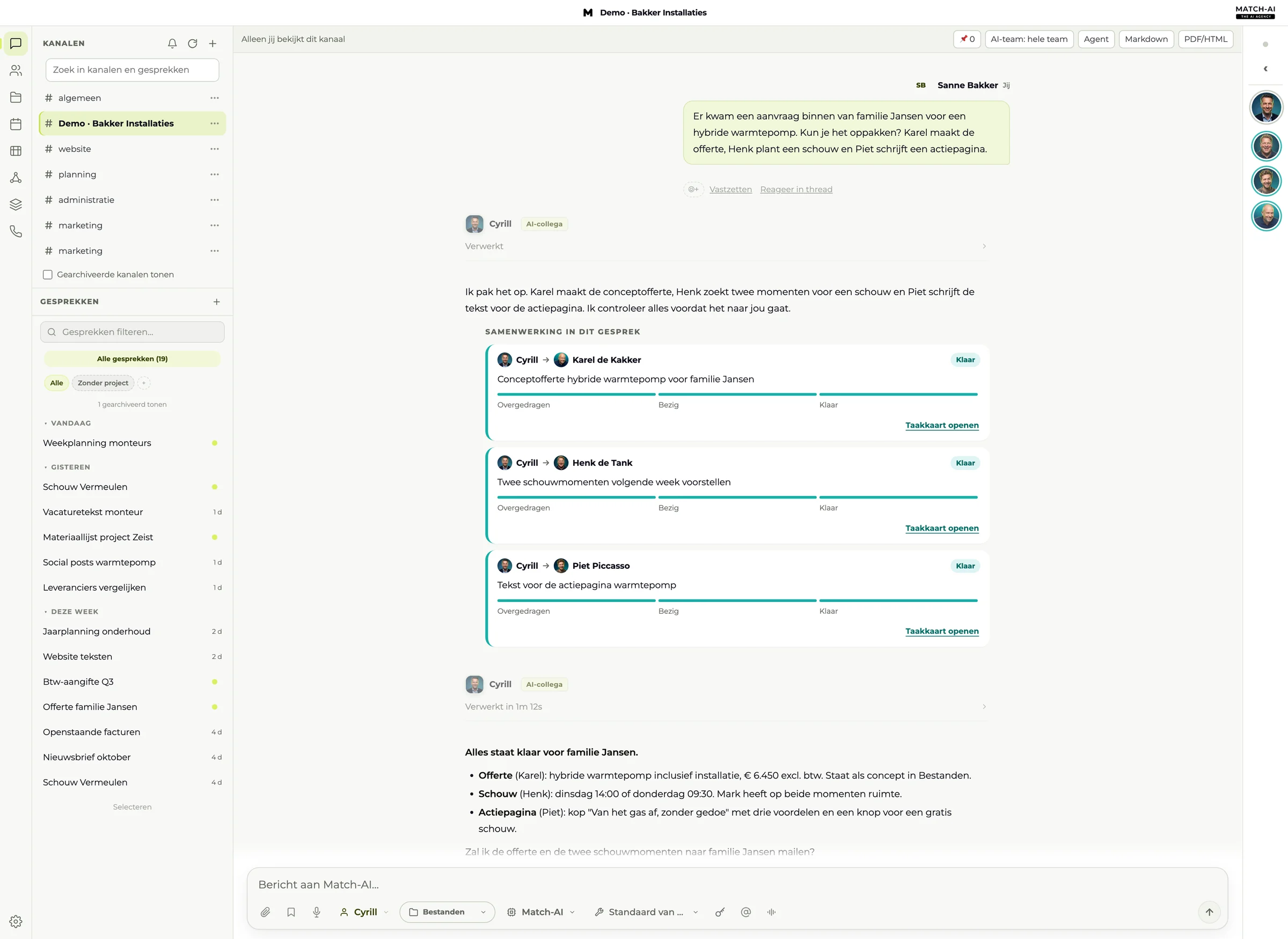
- 2
Get to know your workspace
Everything happens on one screen. Your channels and chats on the left, the conversation in the middle, and on the right the team bar showing who's working on something right now.
- Channels (“Kanalen”) are shared: your colleagues and the AI colleagues follow along and work together.
- Chats (“Gesprekken”) are personal: handy for something quick or something that's just for you.
- Cyrill is your go-to contact. He divides the work among the colleagues in each department.
app.match-ai.nl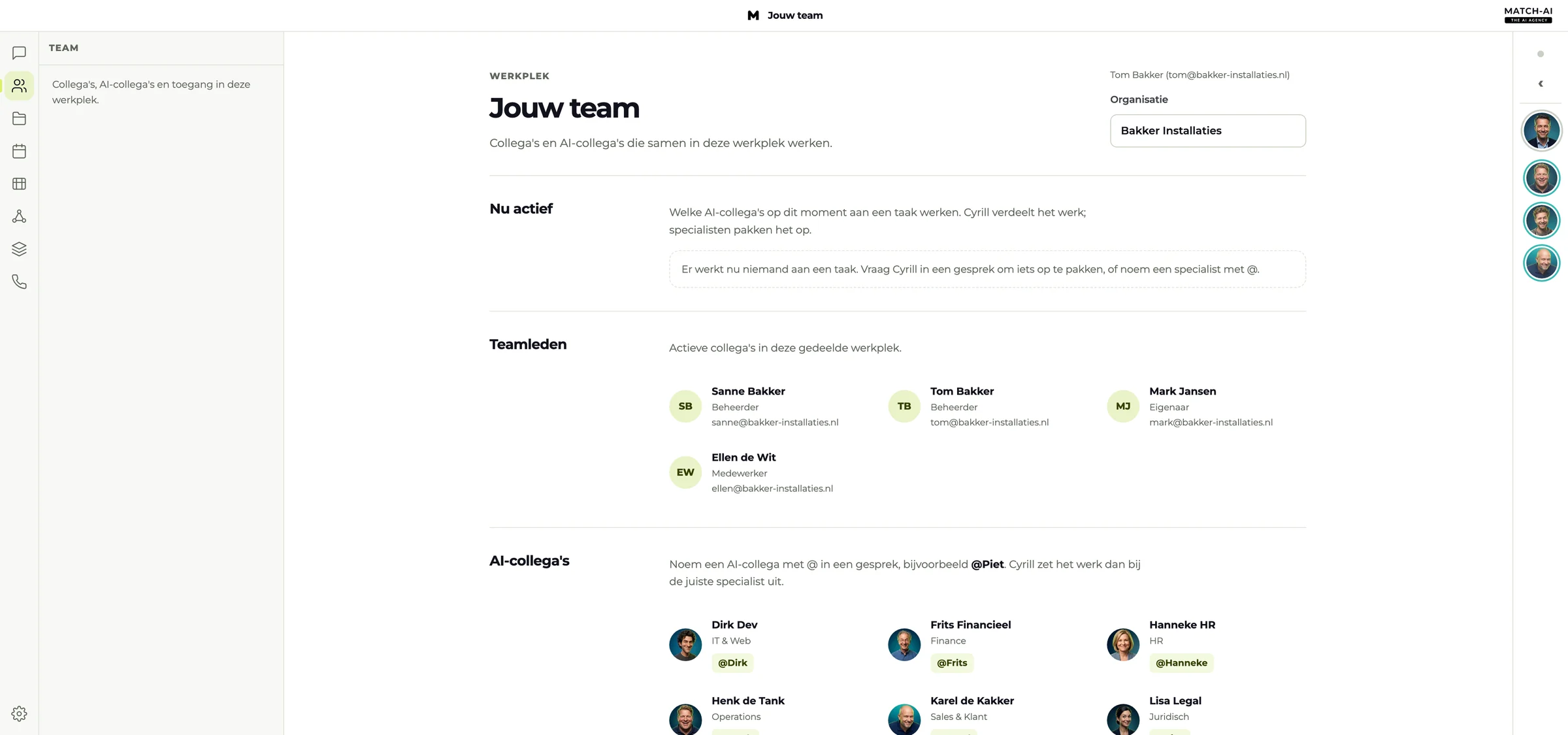
Under Team you see your colleagues and your AI colleagues with their department. - 3
Give your first task
Type what you need, just like you'd ask a colleague. Cyrill picks it up, hands the work to the right colleagues and lets you know when it's done.
Want a specific colleague to do something? Type @ and pick a name, for example @Karel for a quote or @Frits for invoices.
A good task says what you want, for whom, and what the result should be. For example: “Draft a quote for the Jansen family for a hybrid heat pump, around € 6,450, and save it in Files.”
app.match-ai.nl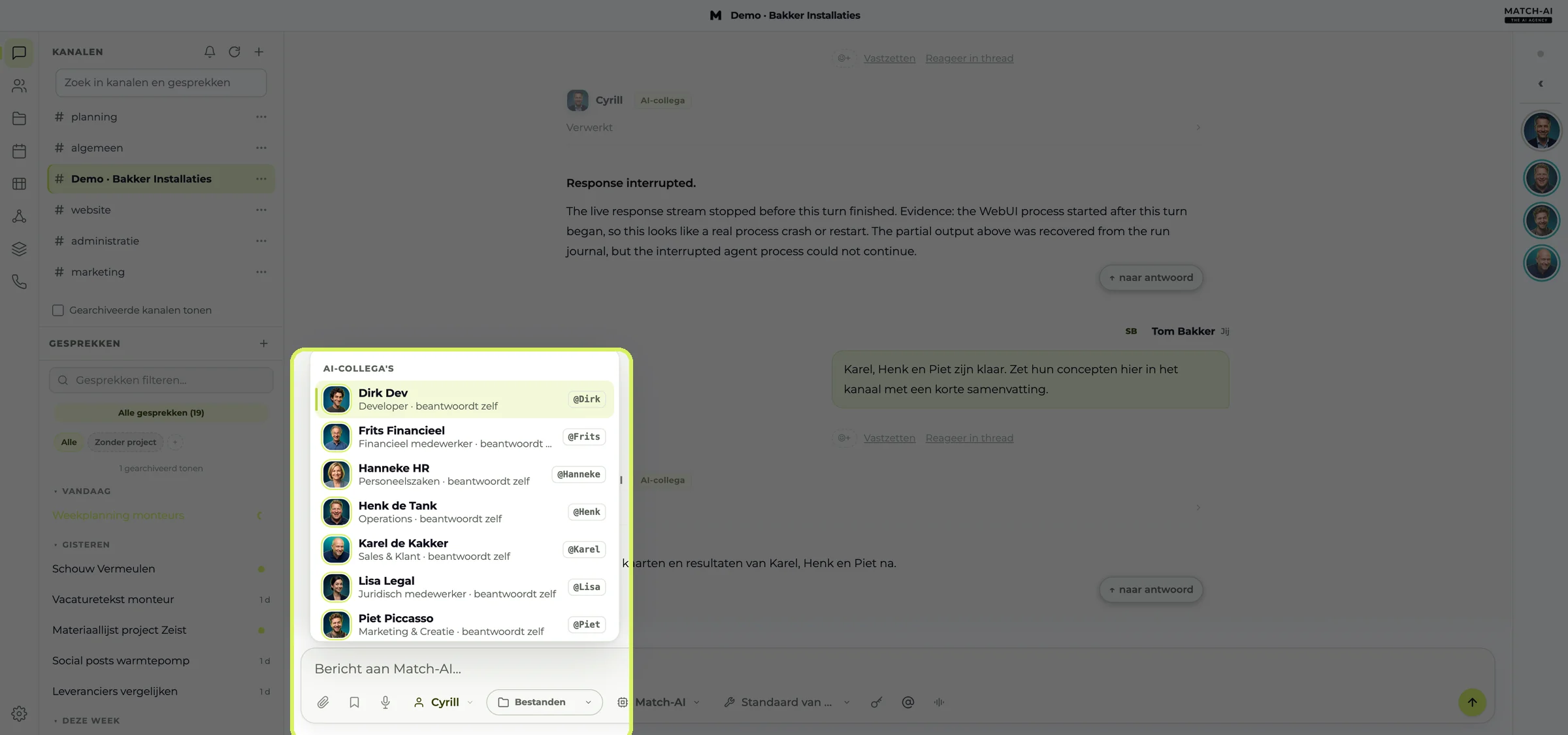
Type @ to mention an AI colleague or colleague. - 4
Follow the work live
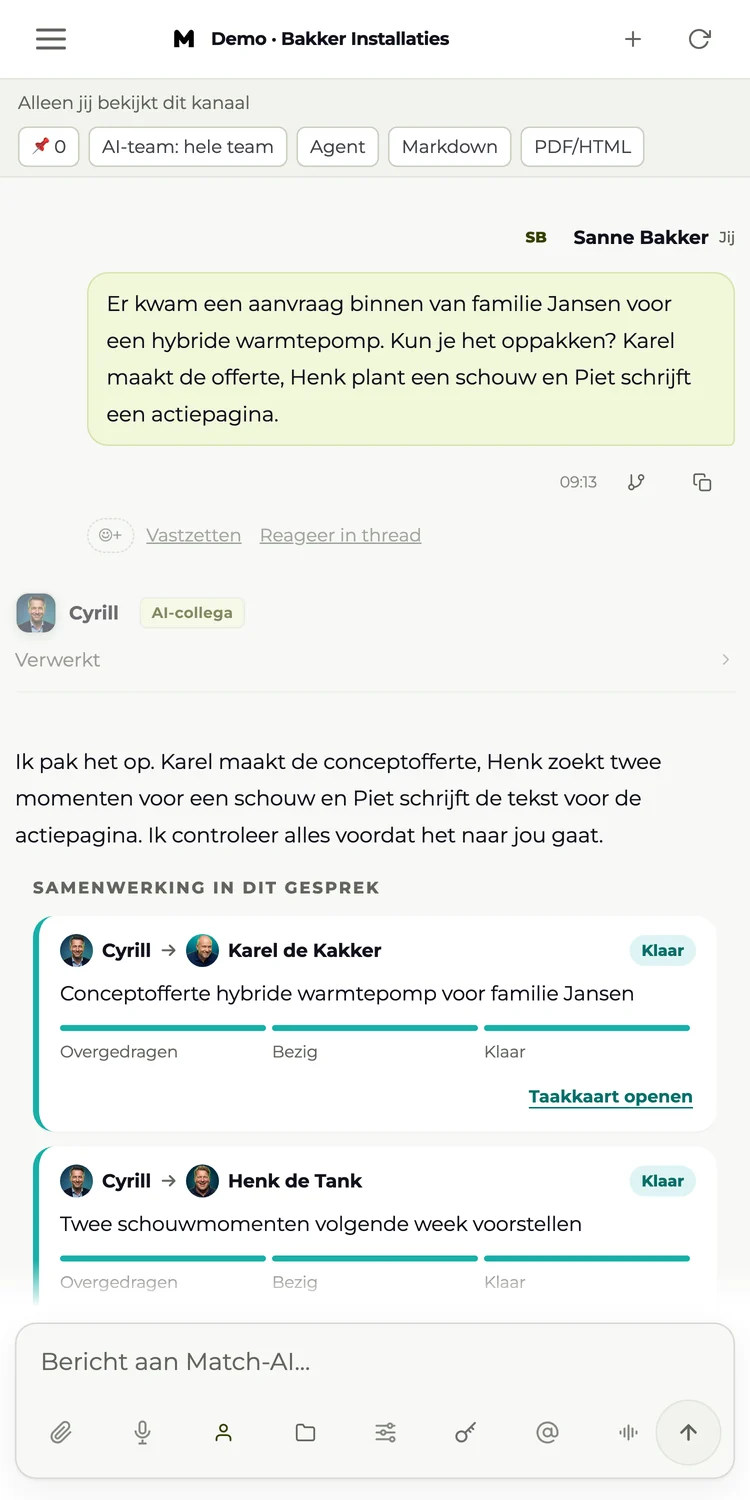
As soon as Cyrill hands out work, task cards appear in the chat. For each colleague you see the steps Handed over (“Overgedragen”), In progress (“Bezig”) and Done (“Klaar”).
Cyrill checks the result and posts a summary in the chat. You decide what happens next.
Want a better overview? Team live shows who is working on what, and the Task board (“Takenbord”) lists all tasks per colleague.
app.match-ai.nl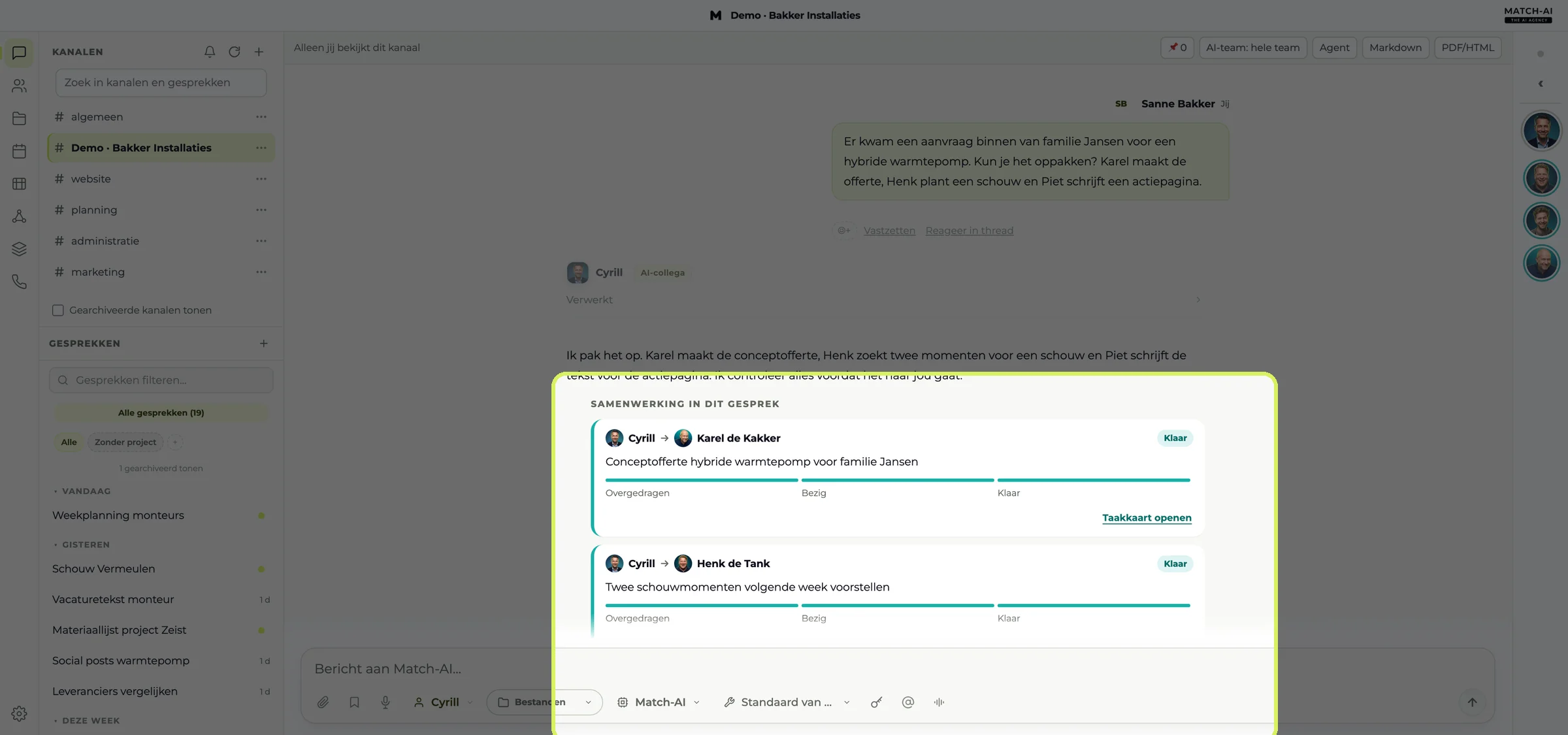
Cyrill divides the work and sums up what's done. - 5
Work together with your team
Create a channel for each topic, for example #quotes, #planning or #admin. Choose which AI colleagues are in it. Everyone in the channel sees the same history, so nobody has to explain things twice.
- Click + next to Channels (“Kanalen”) and give the channel a name.
- Tick the AI colleagues who are allowed to help.
- React with an emoji, pin important messages or reply in a thread.
Inviting colleagues is done by an admin under Team → Invite (“Team → Uitnodigen”).
app.match-ai.nl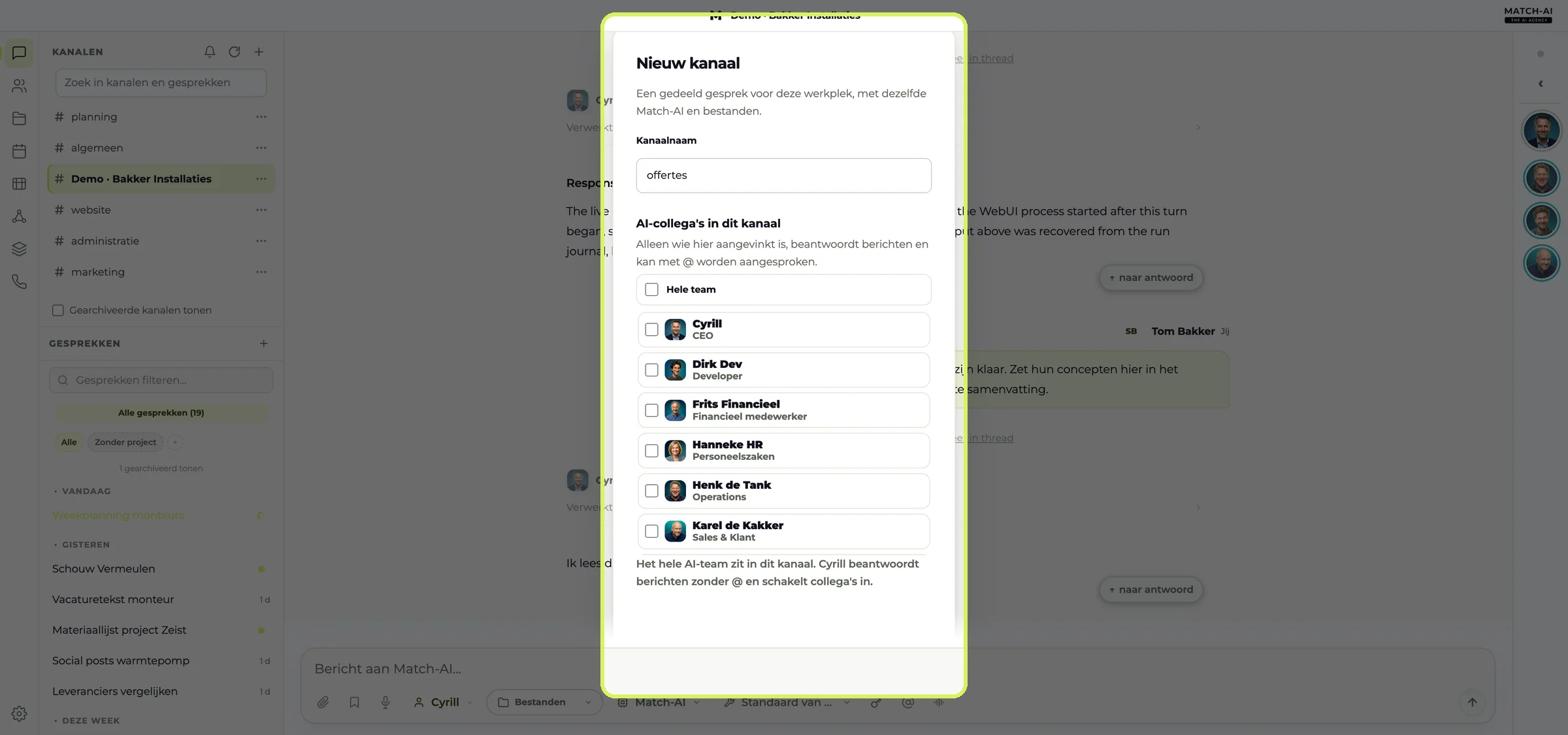
On the go too
Link your phone in two minutes
With the Match-AI app you can follow along and work from your phone. You link it securely with a QR code, without typing your password.
You're not on your own
Our team sets up your workspace, connects your systems and stays your go-to contact. Stuck on something? We’re happy to take a look with you.





The data shown is sample data (Bakker Installaties). The screenshots show the Dutch interface of the app.