
Interface guide
How your workspace works.
One screen for you, your colleagues and your AI colleagues. Below we walk through every part, with screens from the real workspace.
The screen at a glance
Click a number for the explanation.
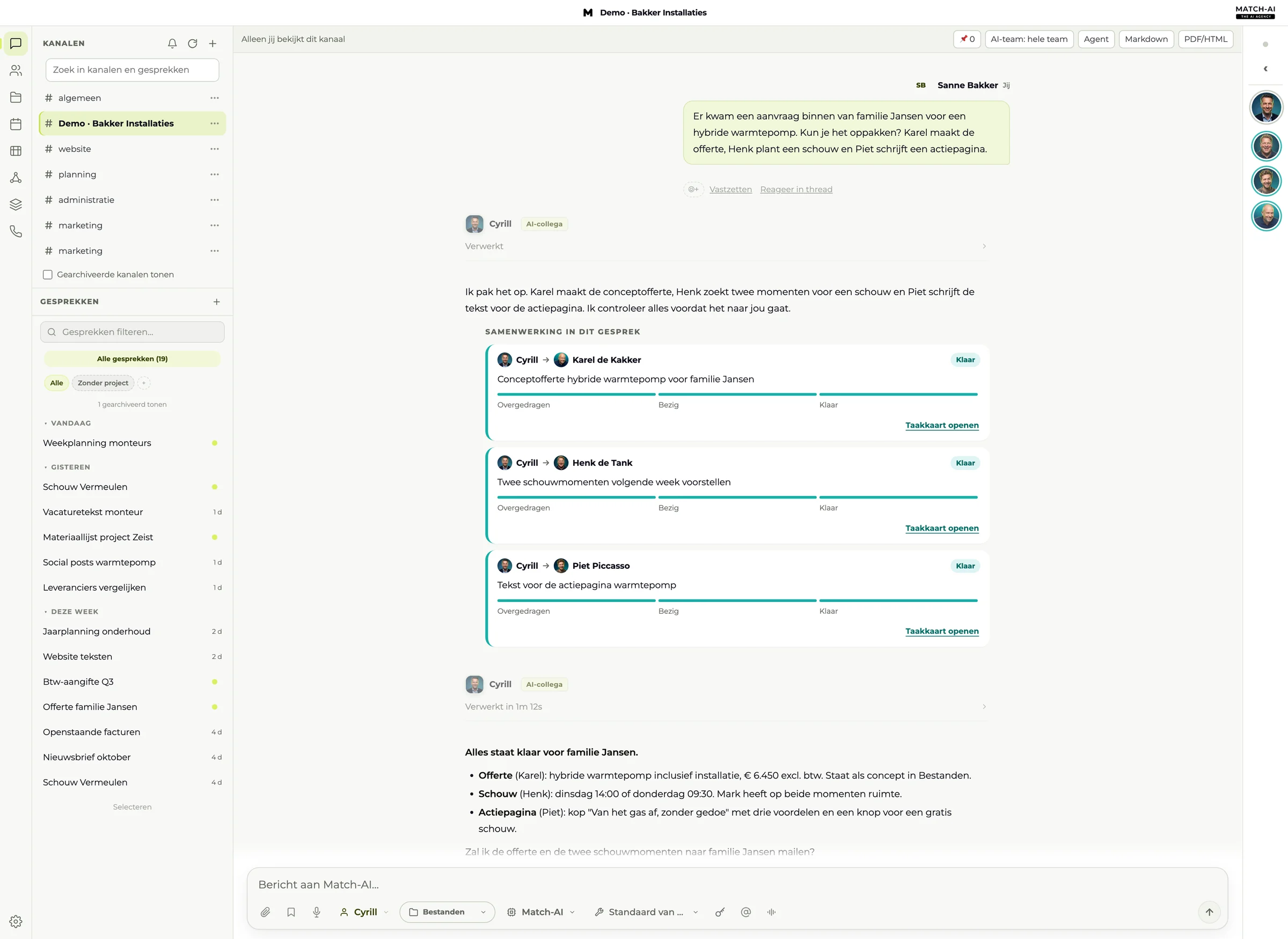
- 1Navigation barSwitch between chat, team, files, planning, task board, Team live and settings.
- 2ChannelsShared conversations per topic. Everyone in the channel sees the same history.
- 3ChatsYour personal chats, sorted by date. Filter or search at the top.
- 4Channel barWho's watching, pinned messages, which AI colleagues take part, and export.
- 5Your messageWhat you ask. Under every message you can react, pin it or reply in a thread.
- 6Task cardsThe work Cyrill hands out, with the status per colleague: Handed over, In progress, Done.
- 7Cyrill's replyThe summary, and often a suggestion for the next step.
- 8Message fieldType your task, add files, dictate or mention someone with @.
- 9Team barYour AI colleagues and their status. The ring shows who's busy.
The chat and the message field
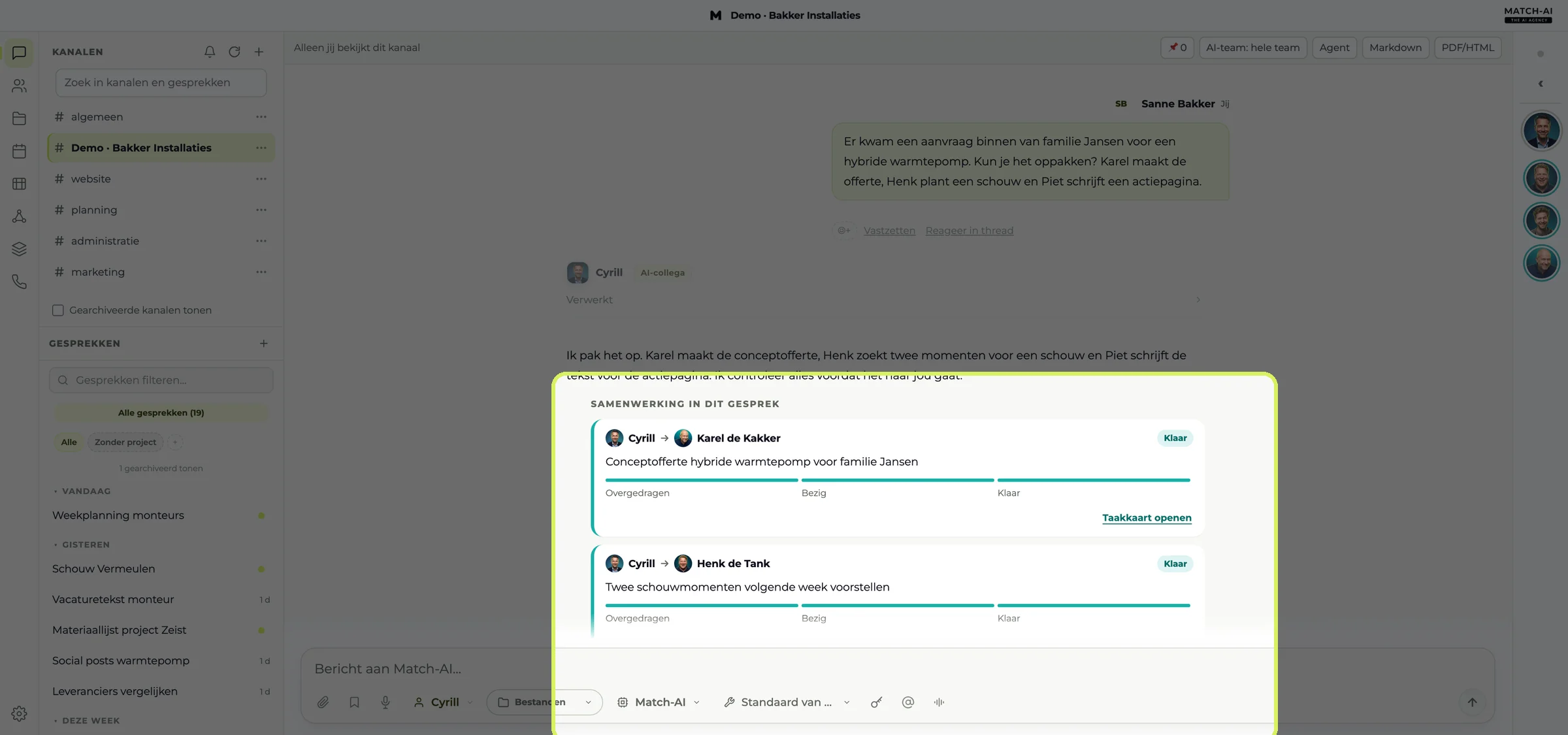
You type your question at the bottom. Cyrill replies, hands work to colleagues and shows the progress in task cards. Click Processed (“Verwerkt”) to see which steps he took, such as reading email or using a skill.
The buttons under the message field
- Paperclip: add a file or photo.
- Microphone: dictate, your speech becomes text.
- Colleague (“Collega”): choose who replies. By default that’s Cyrill.
- Files (“Bestanden”): choose the work folder for this chat.
- Key: add secure access, such as a login or API key. Admins only.
- @: mention an AI colleague or colleague.
- Wave: start a voice chat. You talk, your AI colleague talks back.
Tip: with an @name the task goes straight to that colleague. Without a name, Cyrill picks who fits best.
The team bar
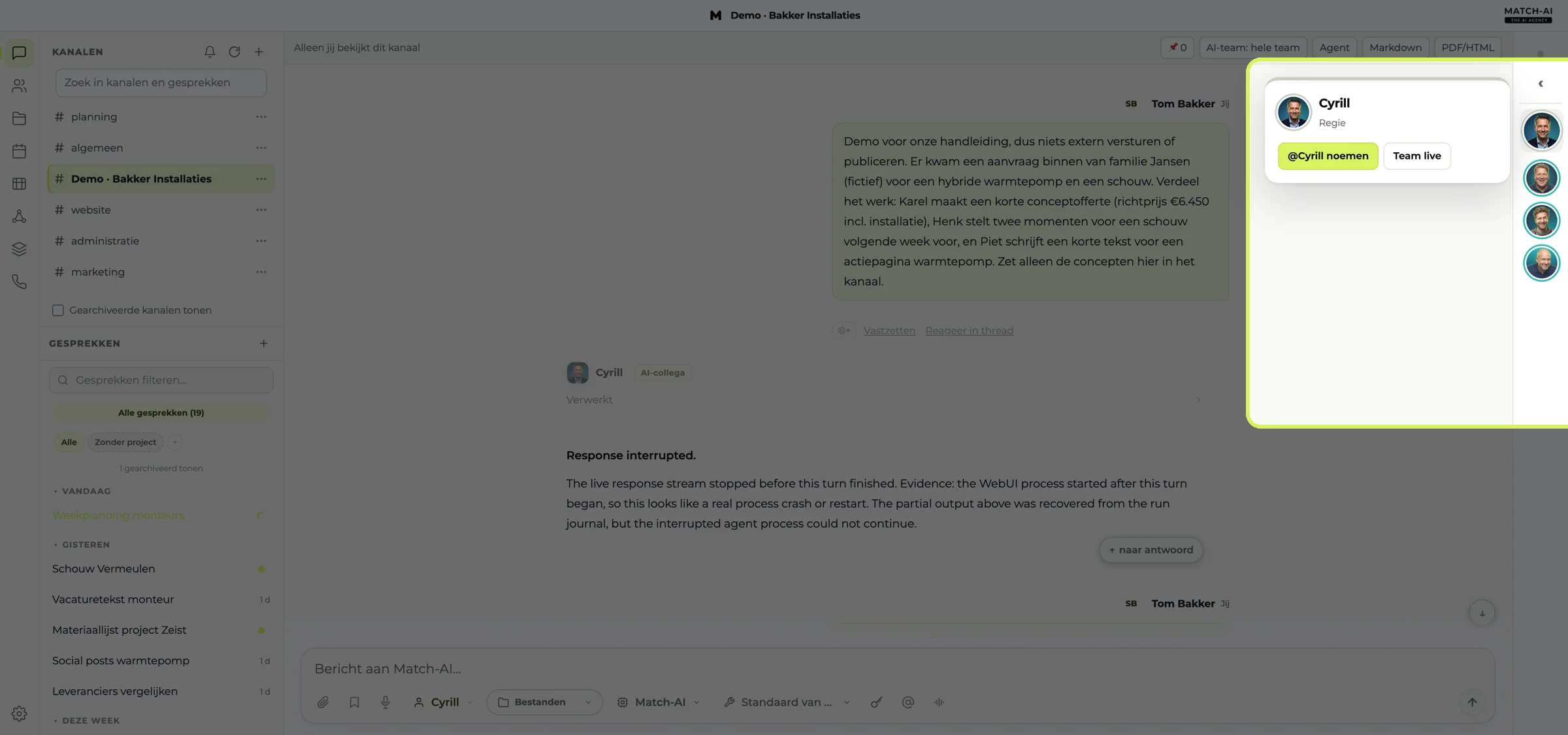
On the right you see your AI colleagues. The ring around their photo tells you what they’re doing. Click a colleague to mention him or open Team live.
| Ring | Meaning |
|---|---|
| Grey | Not busy |
| Lime, spinning | Thinking or working with a tool |
| Teal | Has handed work over to a colleague |
| Amber, pulsing | Waiting for a reply or for another task |
Channels and working together
In a channel, you, your colleagues and your AI colleagues work in one conversation. Everyone sees the same history.
The channel bar
- Who's watching (“Wie kijkt mee”): on the left you see who has the channel open or is typing.
- 📌 Pinned (“Vastgezet”): important messages you want to find again.
- AI team (“AI-team”): which AI colleagues work in this channel.
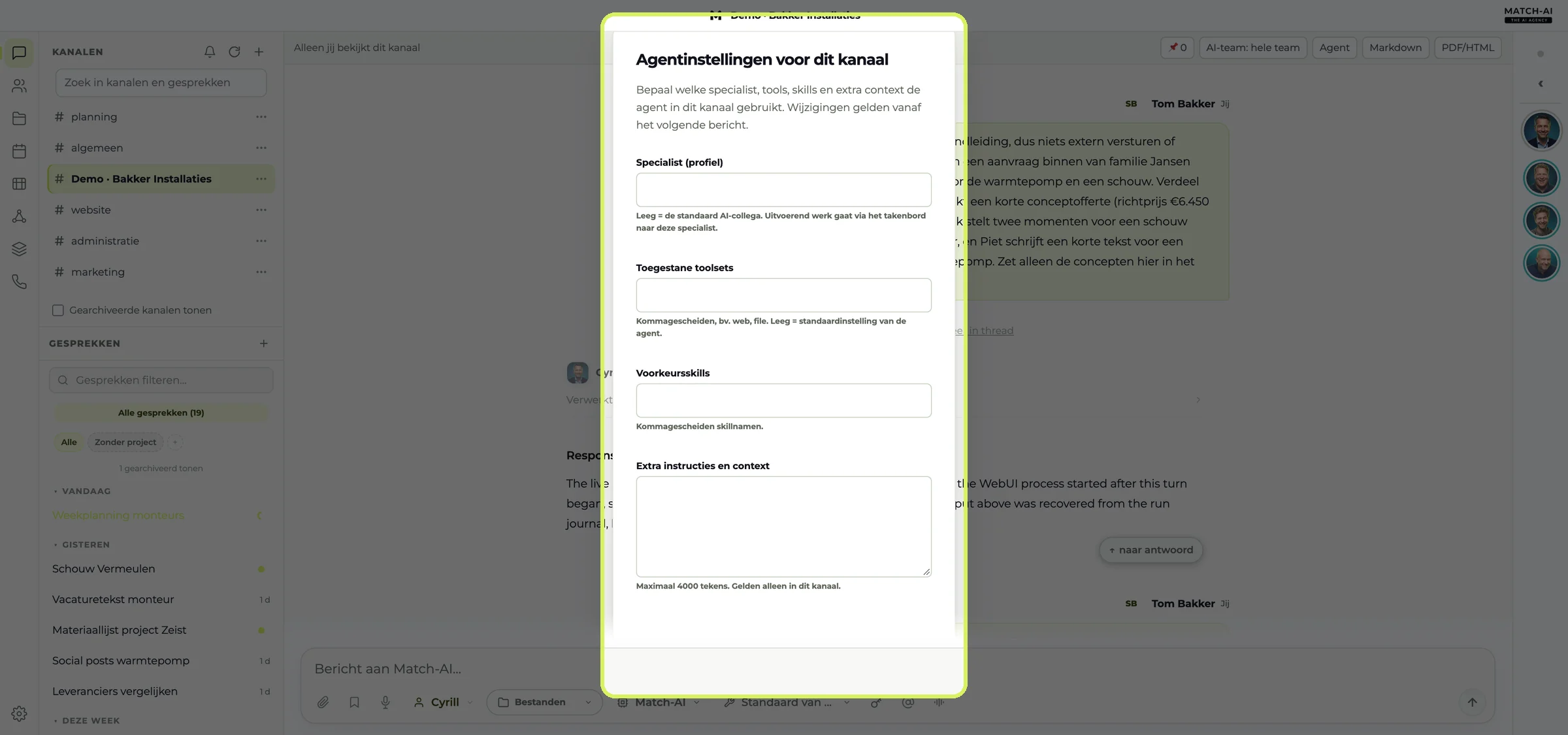
- Agent: settings for the AI in this channel, such as a fixed specialist or extra instructions. Only admins can change them.
- Markdown and PDF/HTML: export the whole channel.
Under every message
React with an emoji, pin it or reply in a thread. Threads are for discussion between colleagues; the AI doesn't read along there.
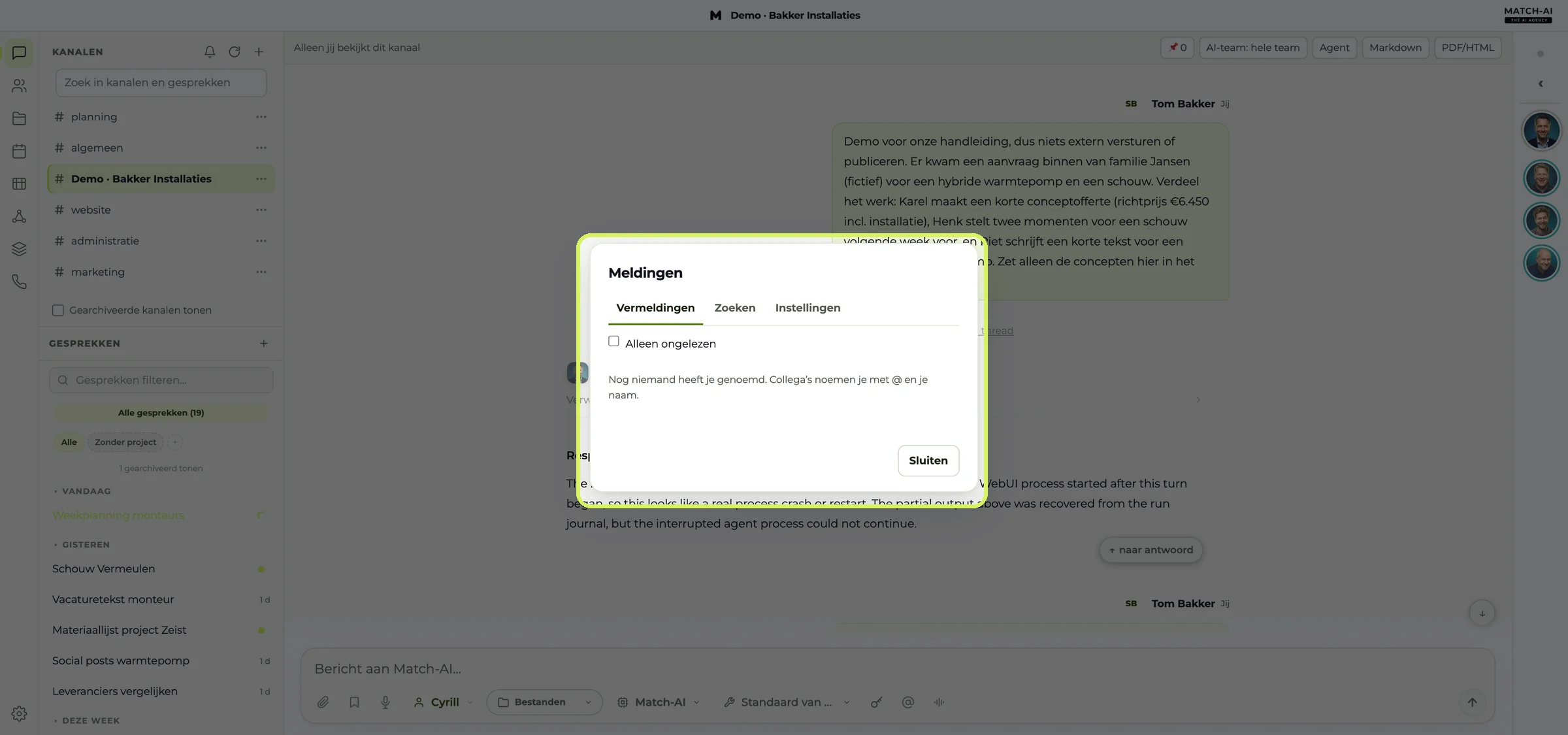
Notifications and search
The bell above the channels shows where you've been mentioned, and lets you search all your channels and chats.
Team live
The dashboard for anyone who wants to see what's happening: who's active, how many tasks are open, what was handed over today and who's online.
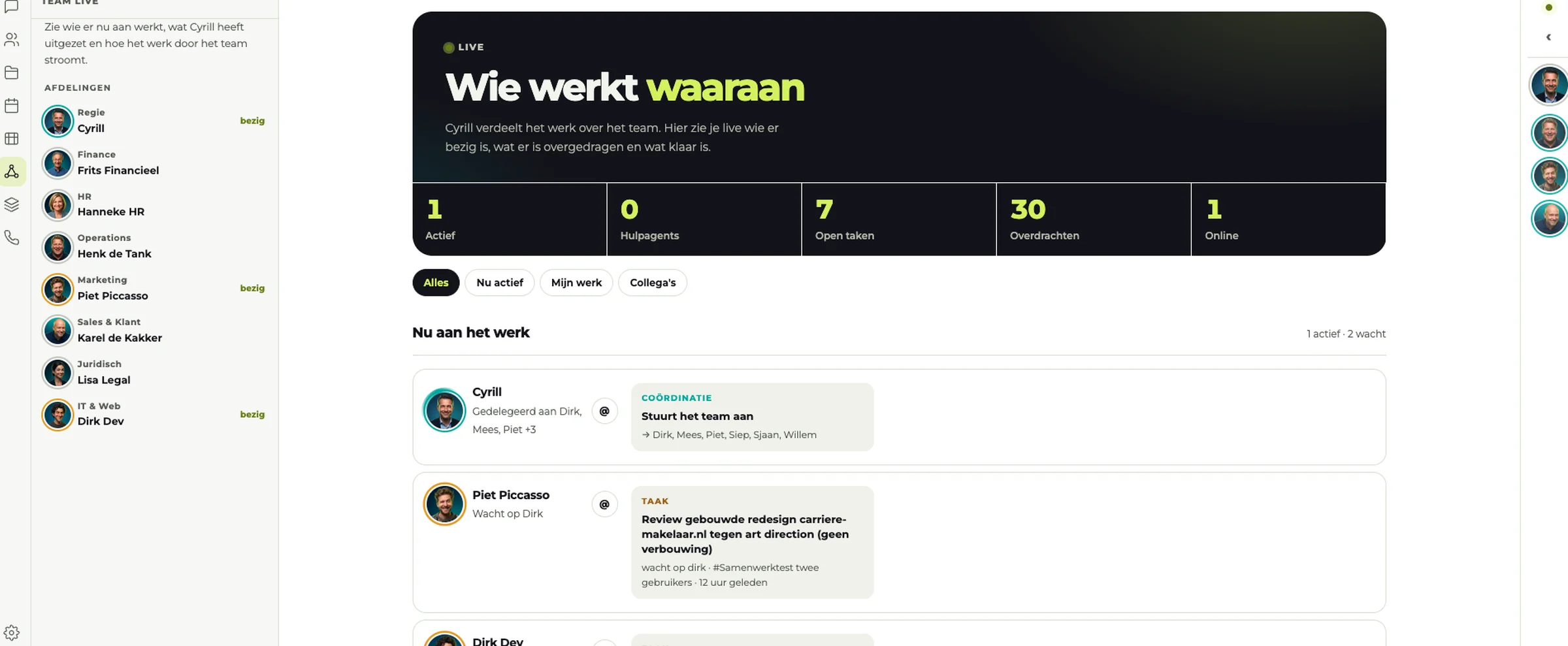
Filter by All (“Alles”), Active now (“Nu actief”), My work (“Mijn werk”) or Colleagues (“Collega's”).
The task board
Every task Cyrill hands out becomes a card on the board. For each AI colleague you see the columns Review (“Beoordelen”), To do (“Te doen”), Ready (“Gereed”), In progress (“Bezig”), Blocked (“Geblokkeerd”) and Completed (“Afgerond”).
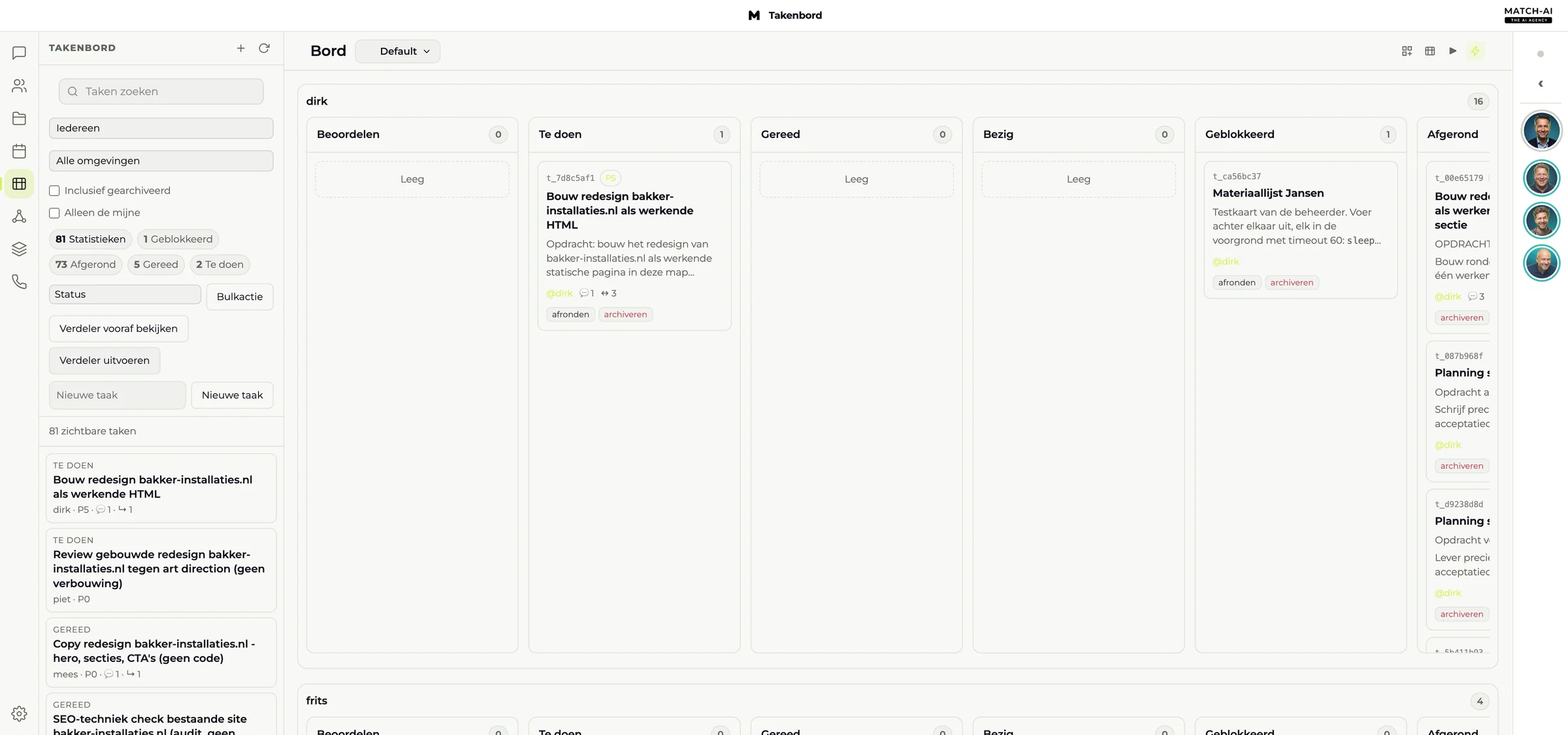
On the left you search and filter tasks, or create a new task yourself. Click a card for the details and the result.
Team and permissions
Under Team you’ll find everyone in your workspace. What you can do depends on your role.
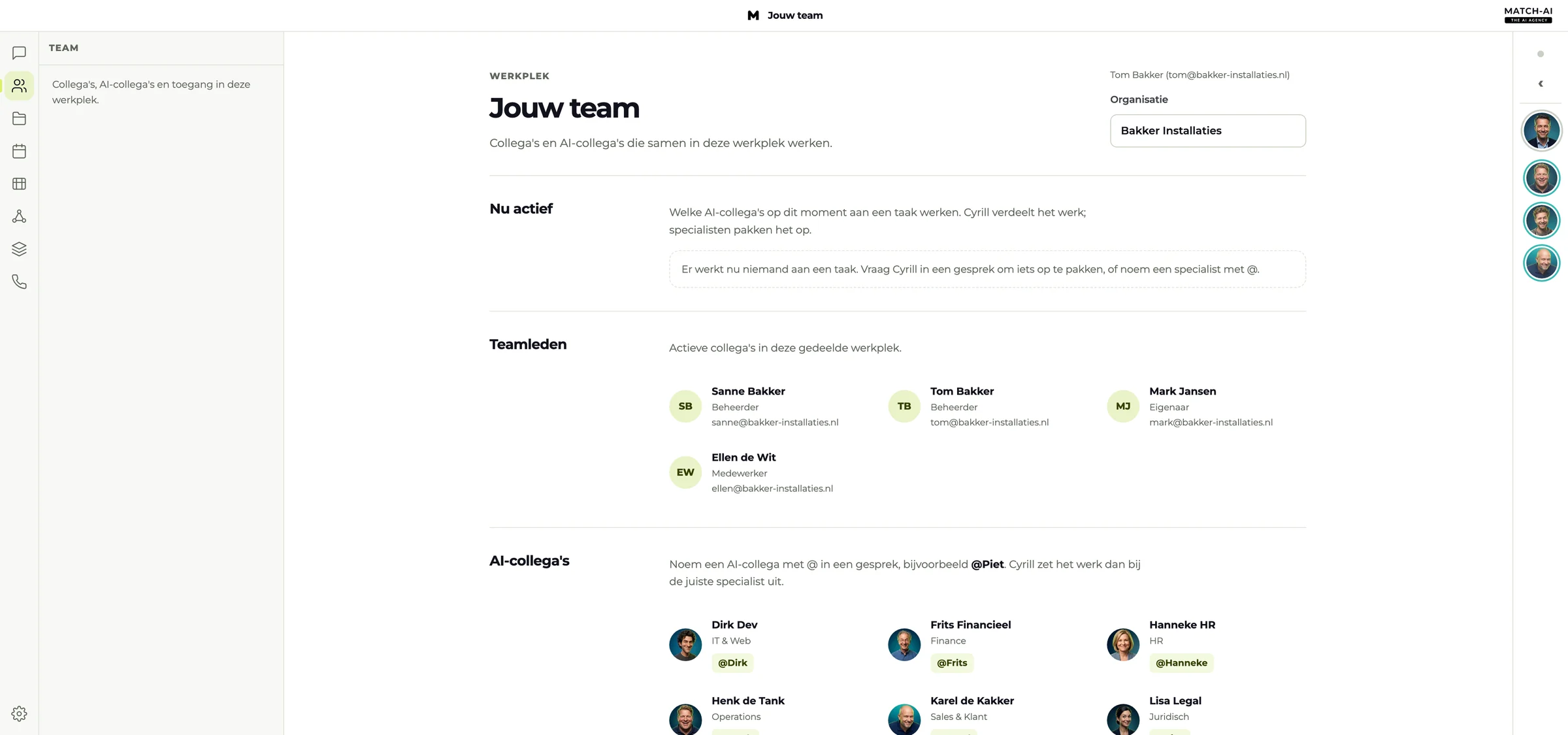
| Role | What you can do |
|---|---|
| Owner (“Eigenaar”) | Everything, including inviting admins and setting retention periods. |
| Admin (“Beheerder”) | Invite colleagues, manage skills and scheduled tasks, set up integrations and keys, view usage and the audit trail. |
| Member (“Medewerker”) | Work in channels and chats, use files, view skills and planning. |
| Guest (“Gast”) | Limited access for external parties. Guests don't have access to channels. |
Files, planning and settings
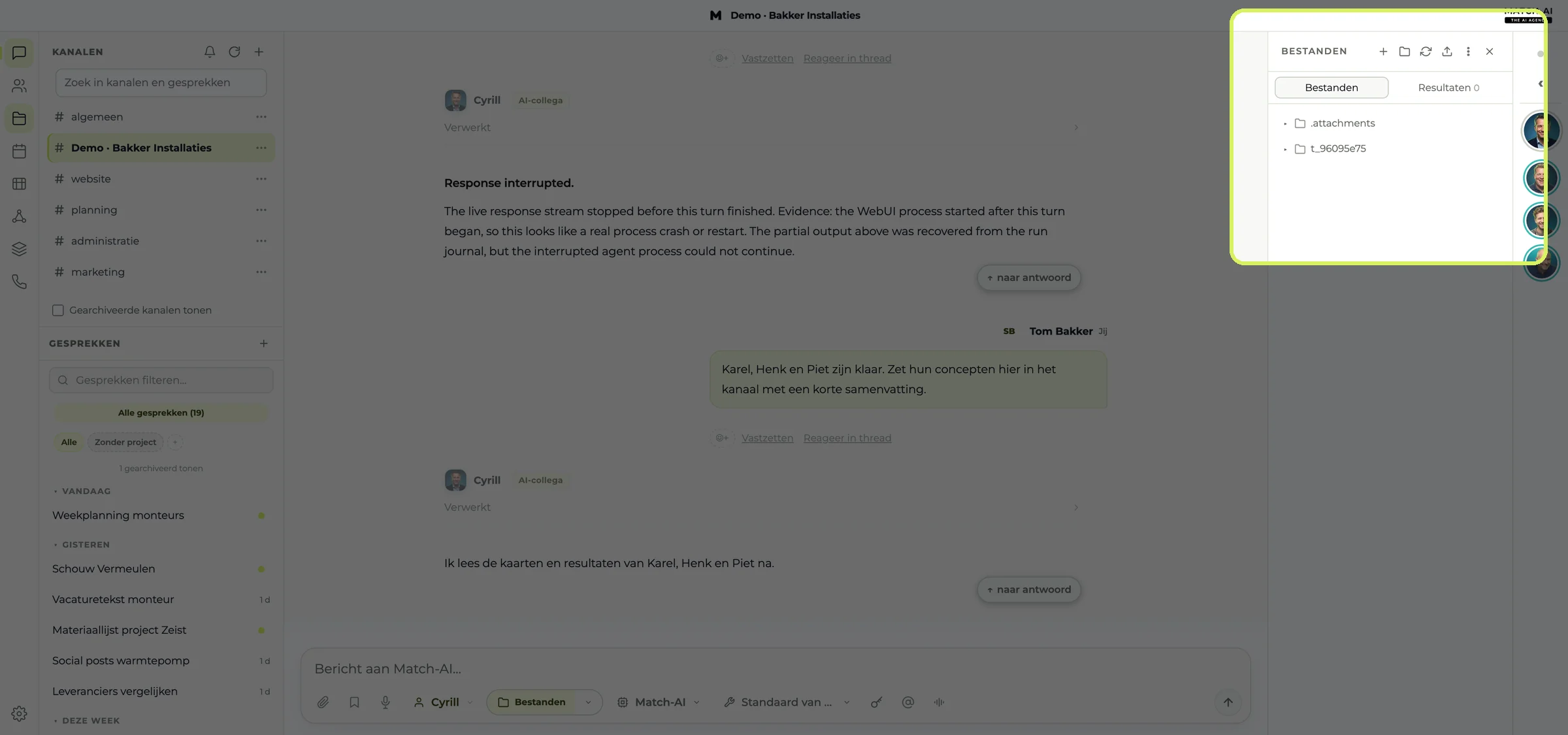
Files (“Bestanden”)
The shared work folder. Open it from the navigation or the message field. You can view and upload files and create folders.
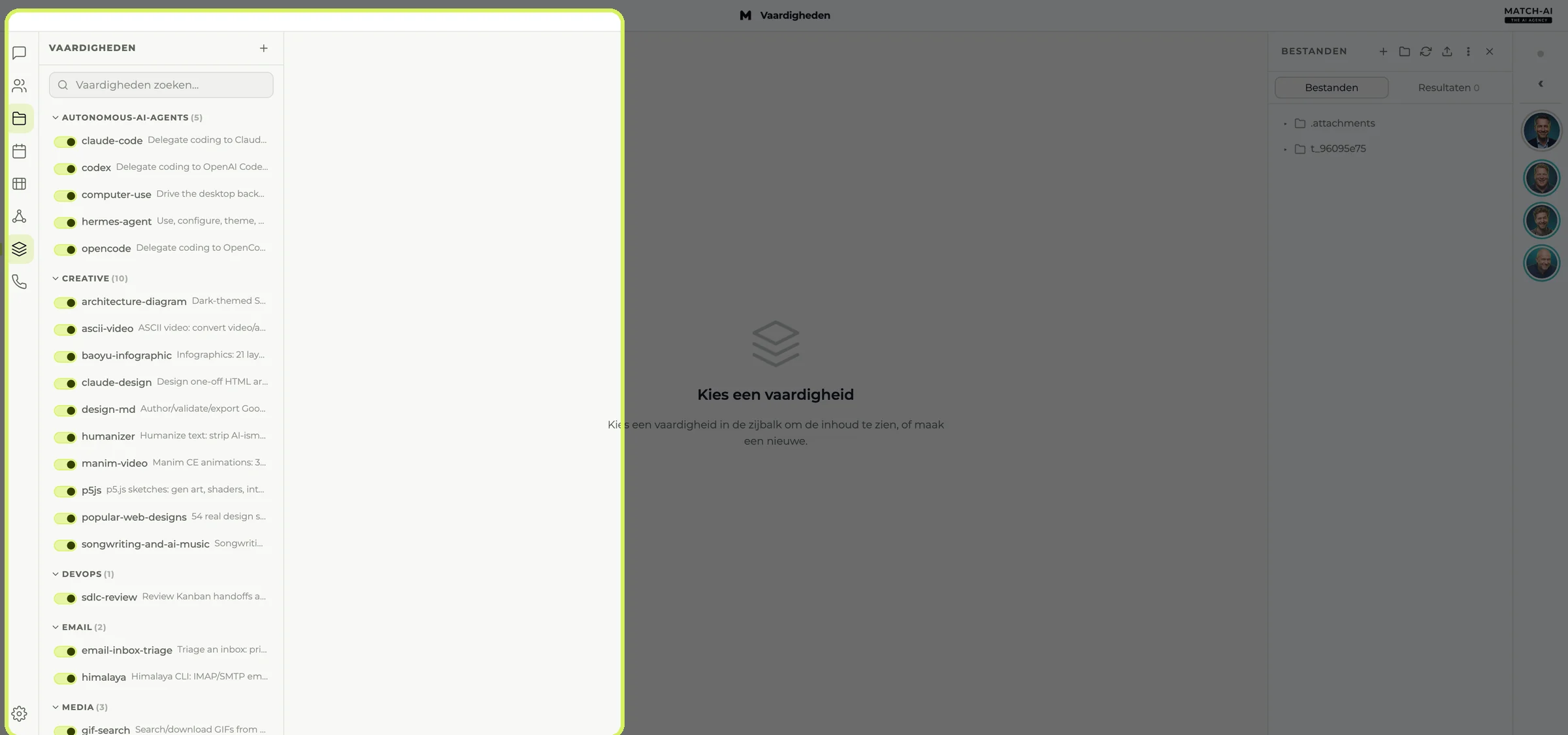
Skills (“Vaardigheden”)
What your AI colleagues can do, by category. Admins add or adjust skills.
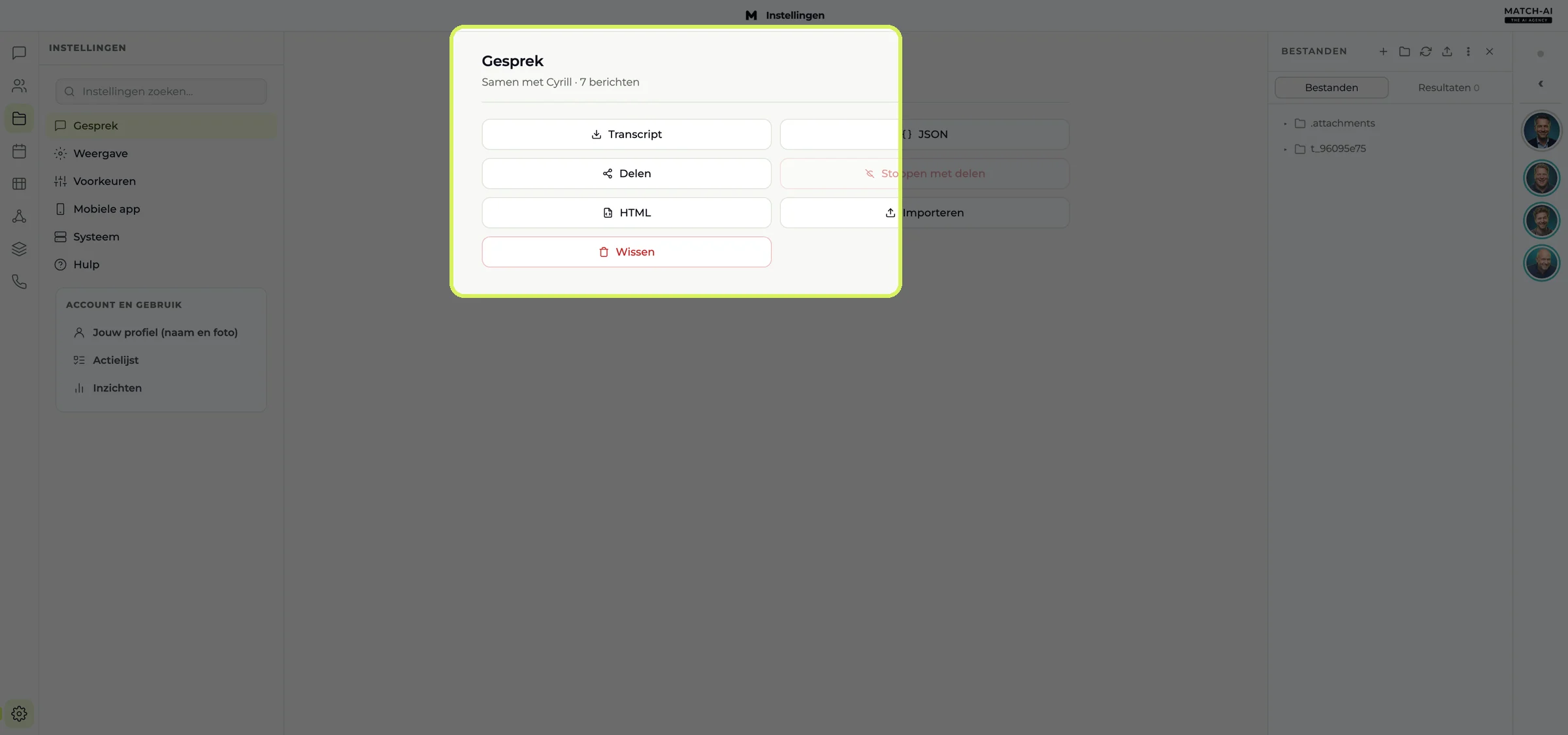
Settings (“Instellingen”)
Export a chat (transcript, JSON or HTML), set up the display, link your phone and manage your profile.
Scheduled tasks (under Tasks, “Taken”) are tasks that come back by themselves, like an overview of unpaid invoices every Friday. Admins create them; everyone can view them.
Something unclear?
Check the frequently asked questions or get in touch with your go-to contact at Match-AI.





The data shown is sample data (Bakker Installaties). The screenshots show the Dutch interface of the app.